Welcome to re:Quoted! Before you can send your first lightning-fast quote from the field, you need to tell the app a little bit about your business. Setting this up once means you never have to think about it on-site again.
The first time you sign into re:Quoted you'll be prompted to configure these settings. After that, you can update them any time through Settings > Business Details.
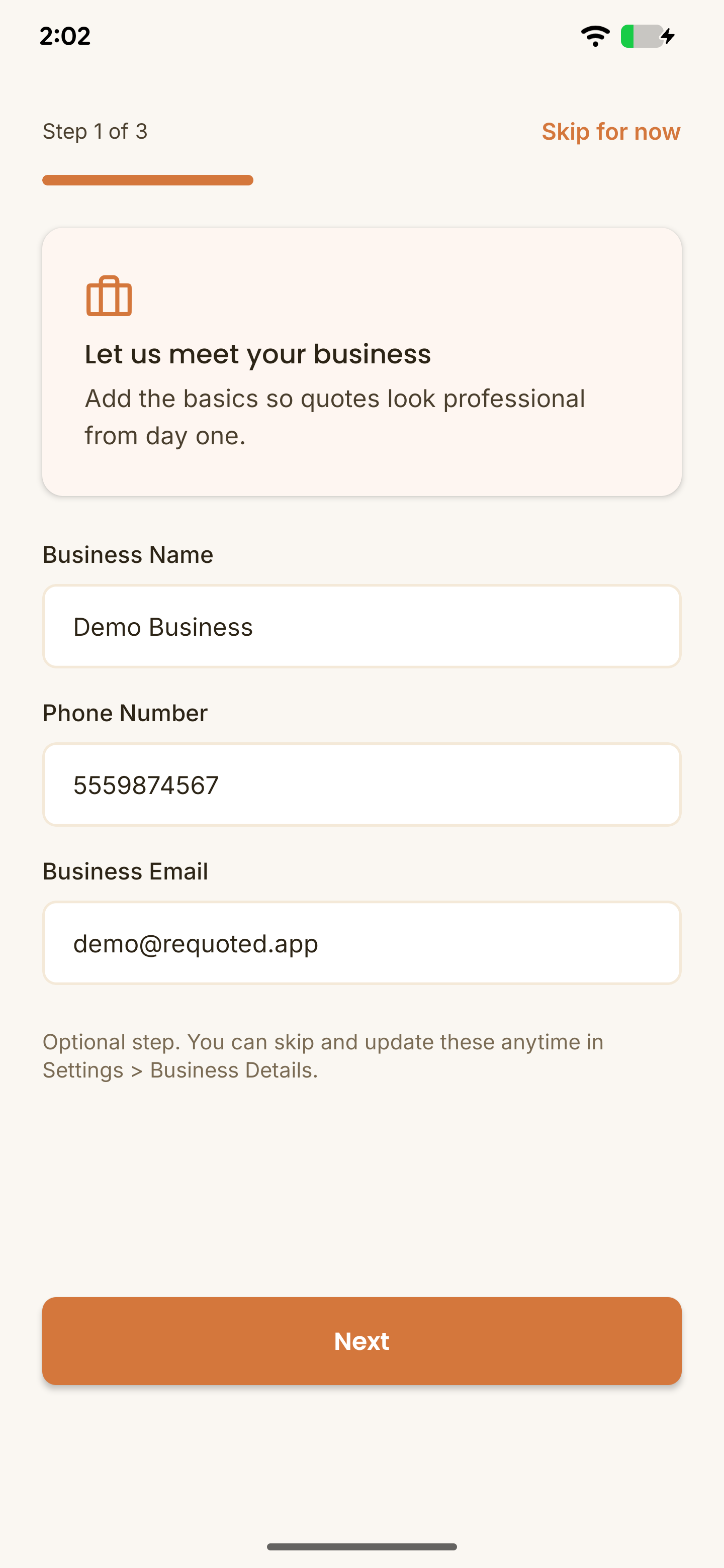
1. Complete Your Company Profile
Your company profile is how your business looks to your customers when they receive a quote.
- Add your business name
- Add your preferred contact number where customers should reach you
- Add your business email address
- Click Next.
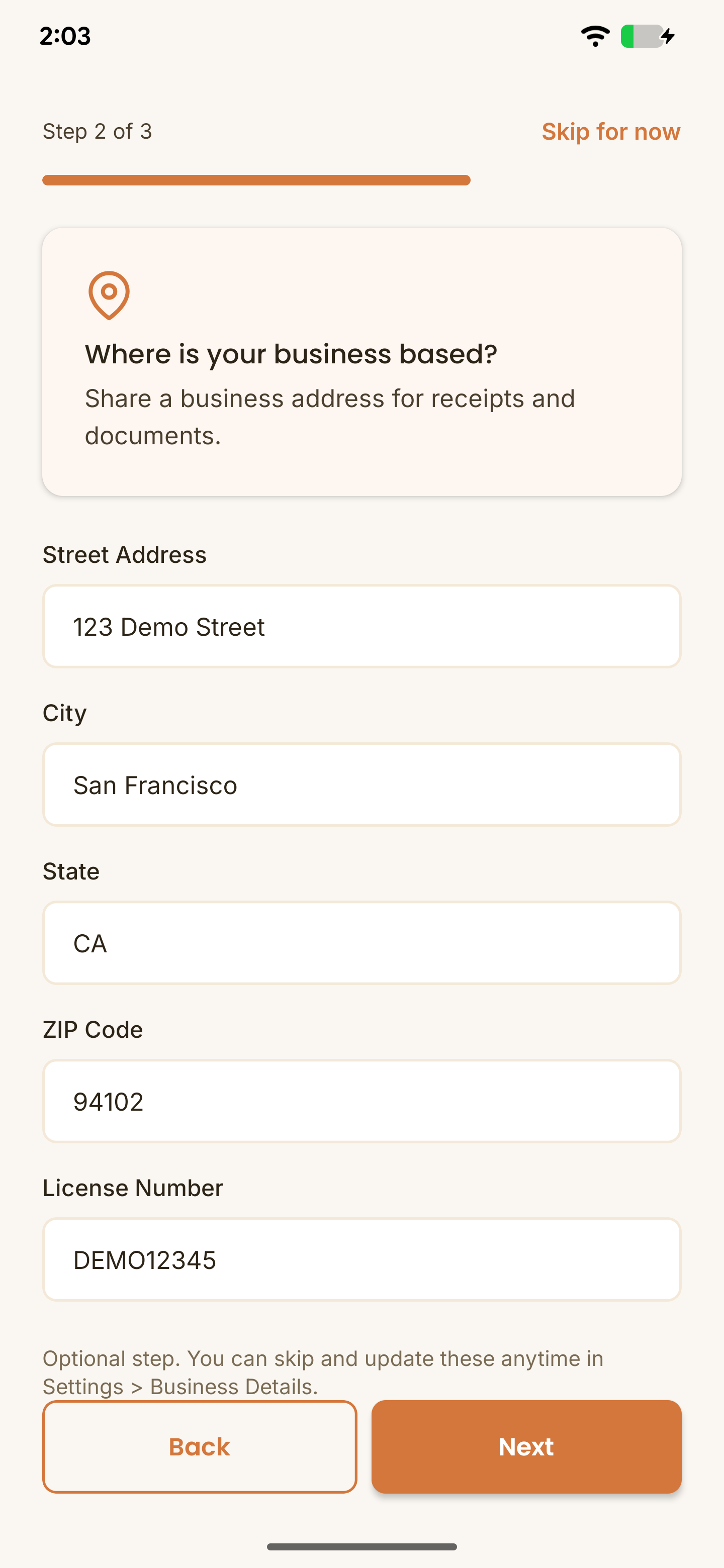
2. Set Your Address
Set your business address, this will show up on your emails and PDF estimates to customers
- Add your business address
- Include your business license number if you want to share it with customers
- Click Next.
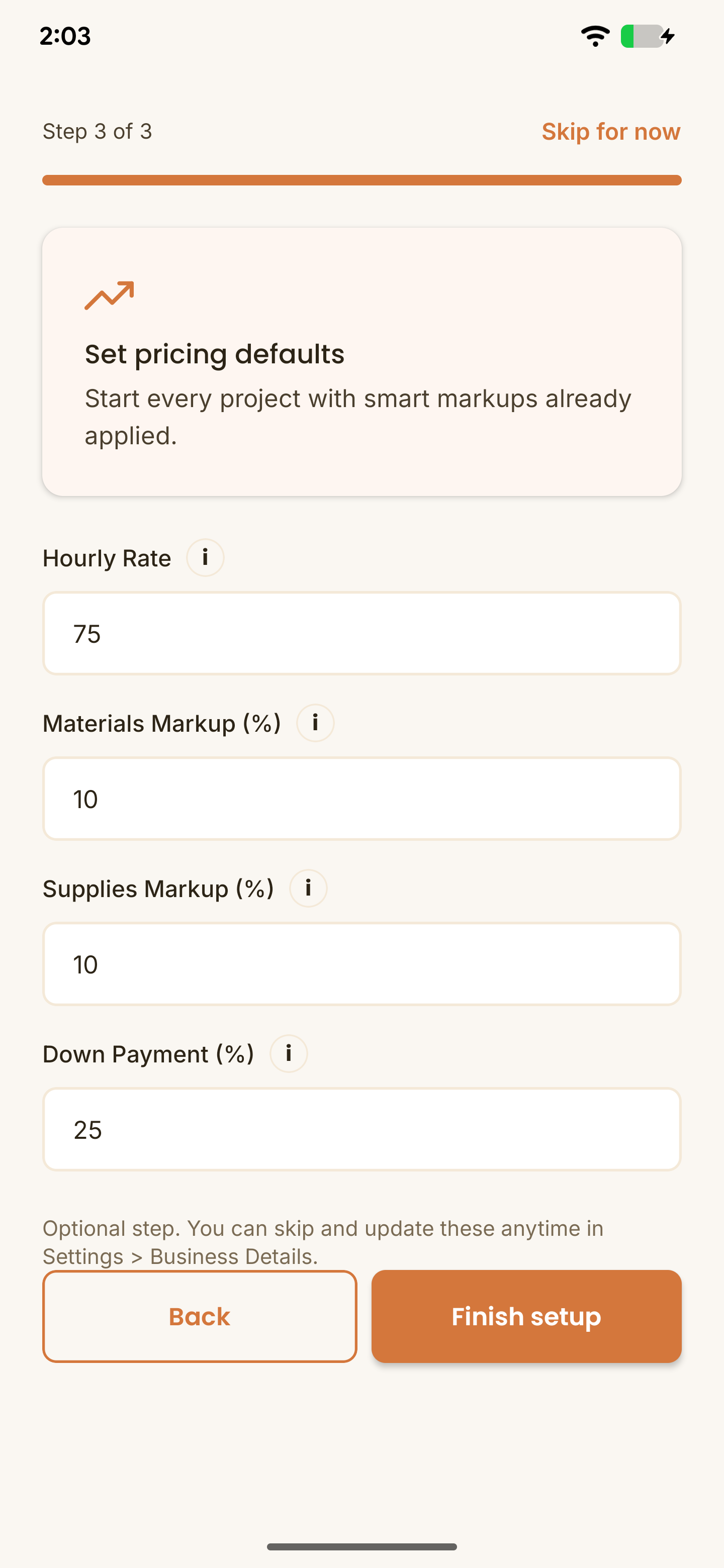
3. Configure Your Pricing Markups
re:Quoted pulls your base labor rates and markups into your projects automatically to help calculate costs. You can change each of these per project, so don't worry if you have different rates for different jobs. Just put in your standard or go-to rates.
- Set your standard labor rate per hour.
- Add your markup for materials to protect your profit margins automatically.
- Set your supplies markups, this helps covers consumables you don't directly bill the customer for - like gloves, tape, and sealant.
- Set your downpayment percent that will be collected from the customer before work starts.
- Click Finish setup.
Want to learn how to send your first quote? Check our quote creation guide