re:Quoted does more than just build quotes; it helps you manage your pipeline so no job slips through the cracks.
1. The Dashboard
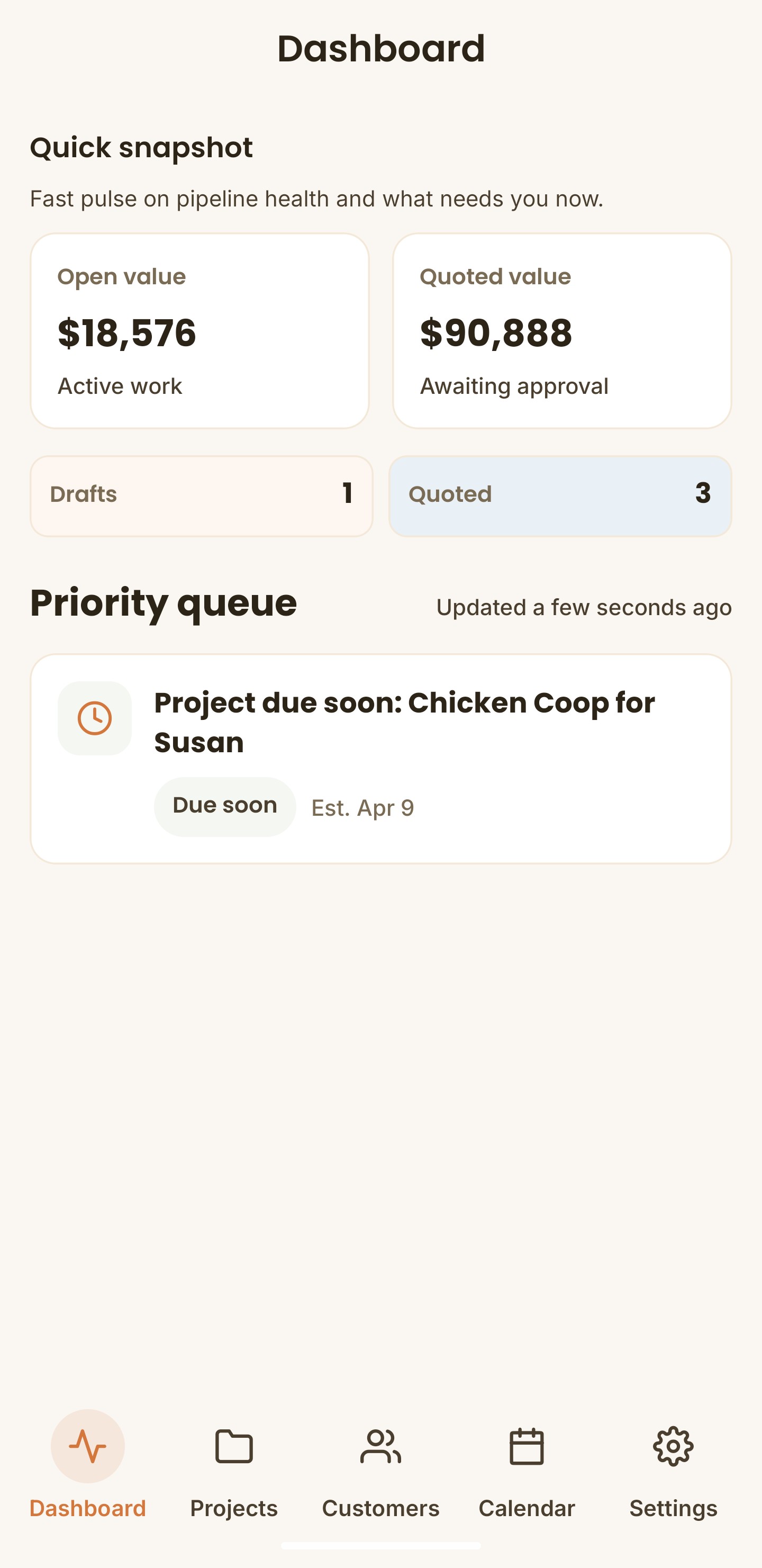
Your dashboard highlights what is most important for your review. This can include upcoming jobs, quotes that need follow up, or tasks on your calendar that need to be addressed.
It also provides a glance view of business pipeline and cashflow health, showing you how much money is outstanding in accepted quotes, and how much money is waiting in quotes that have not been accepted.
2. Quote Status Tracking
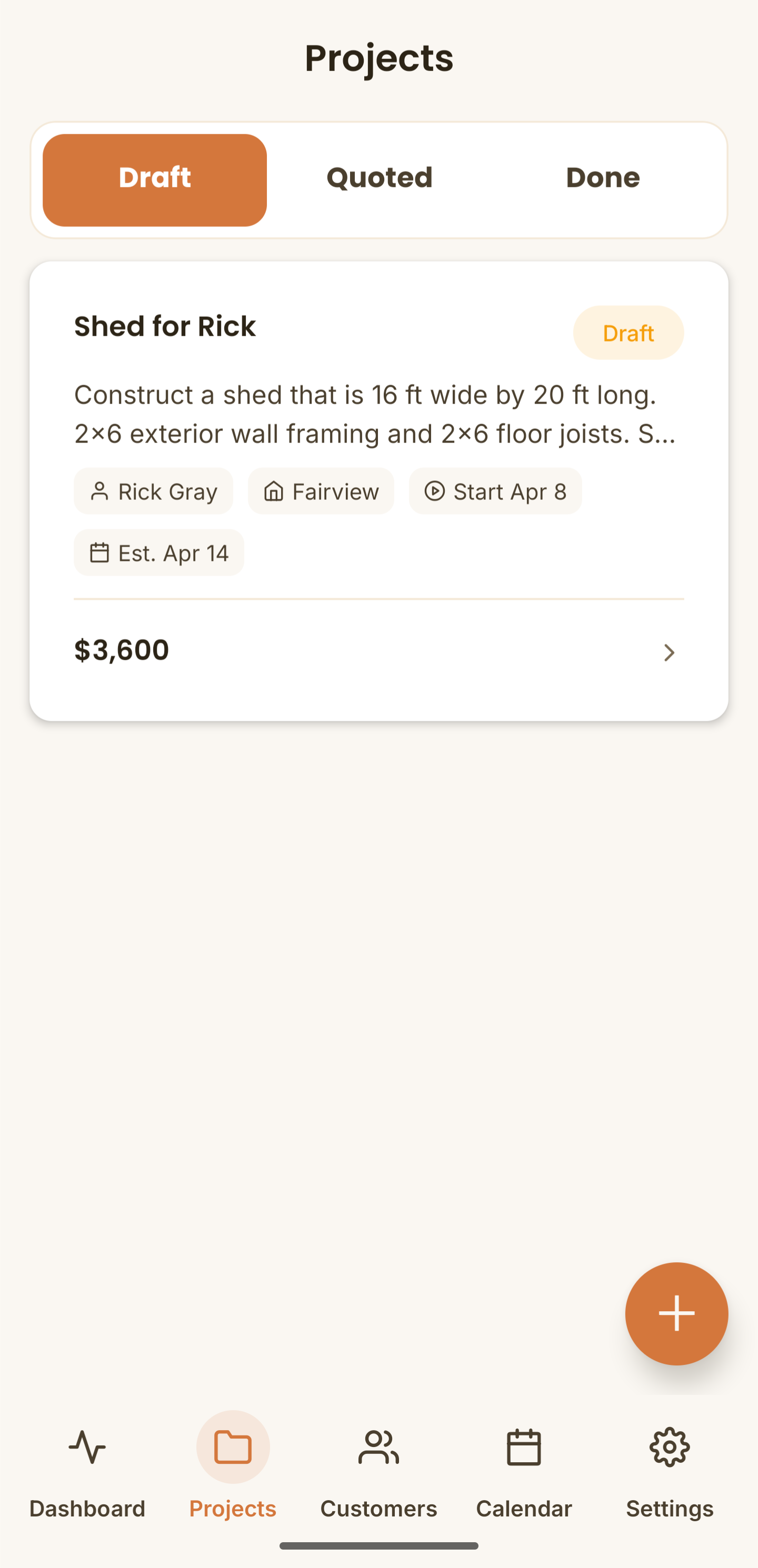
When you create a quote, it is labeled as Draft and shown on the Draft Projects Tab.
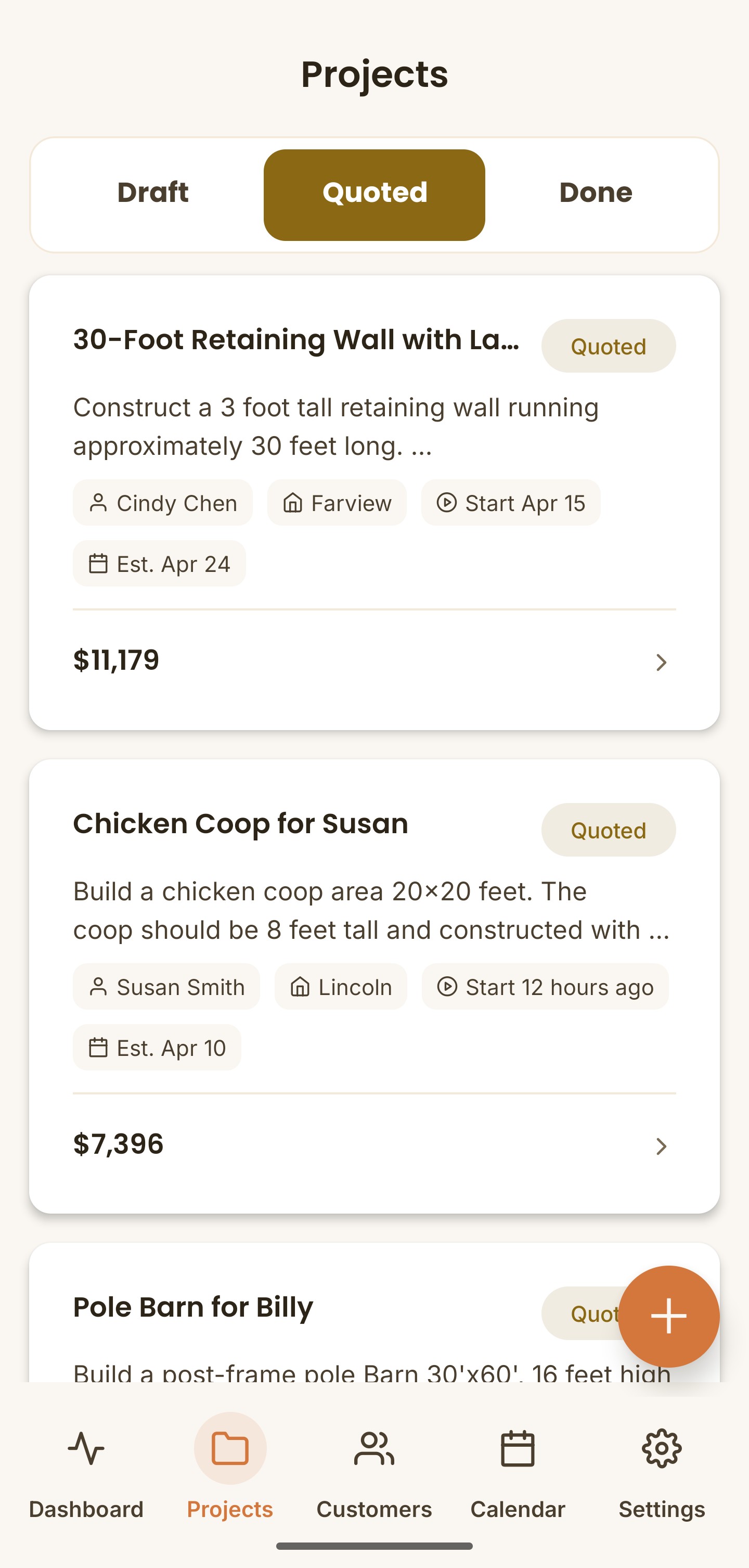
After sending the quote to the customer, the quote status updates to Sent and it moves from the Drafts queue to the Quoted Project tab. The customer will receive an email notification that outlines their quote where they can respond or accept with one click.
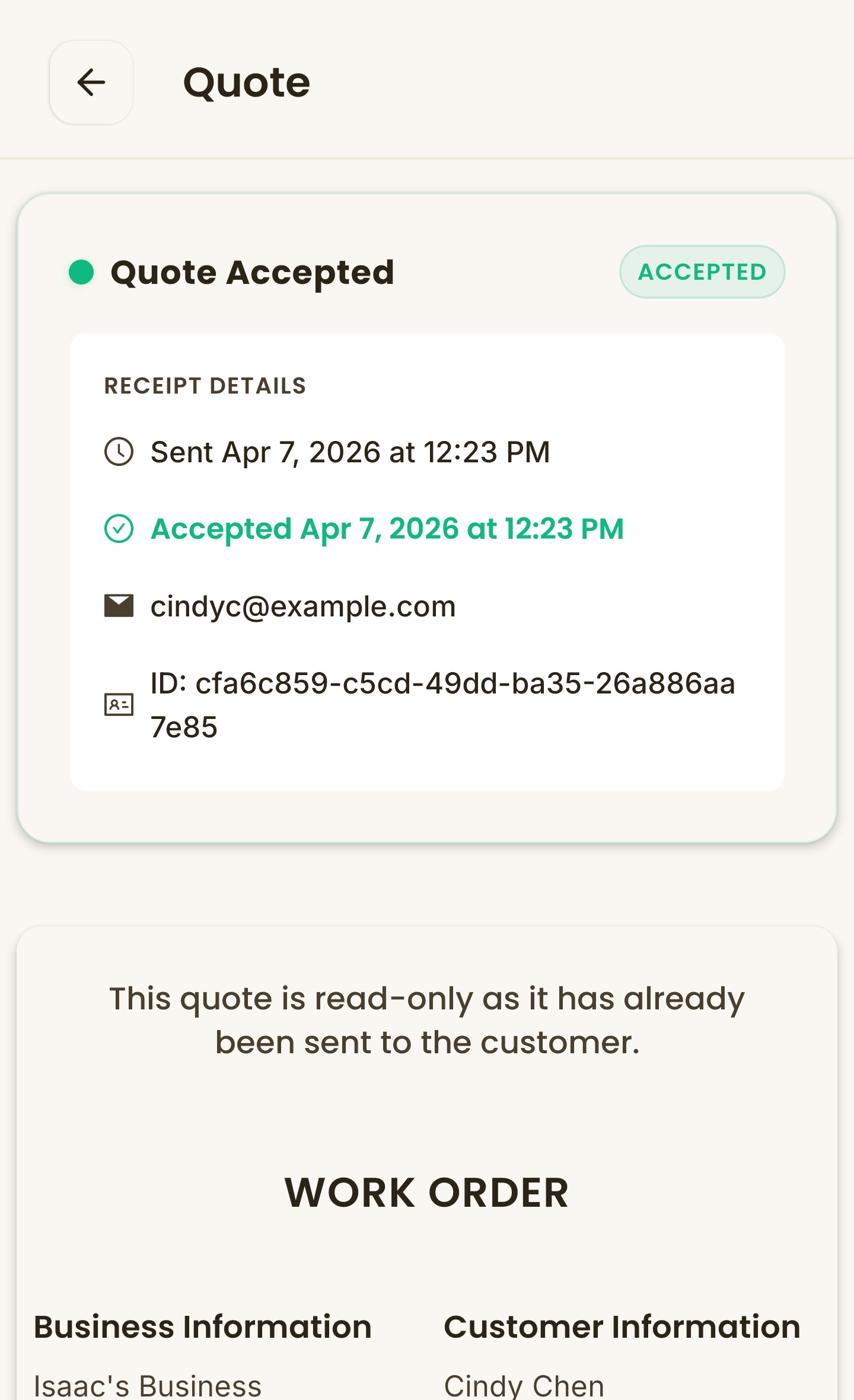
Once the customer accepts, the status within the quote inside the project will change to Accepted. You will receive an email and push notification letting you know the customer has accepted. You will also see a notification in their dashboard.
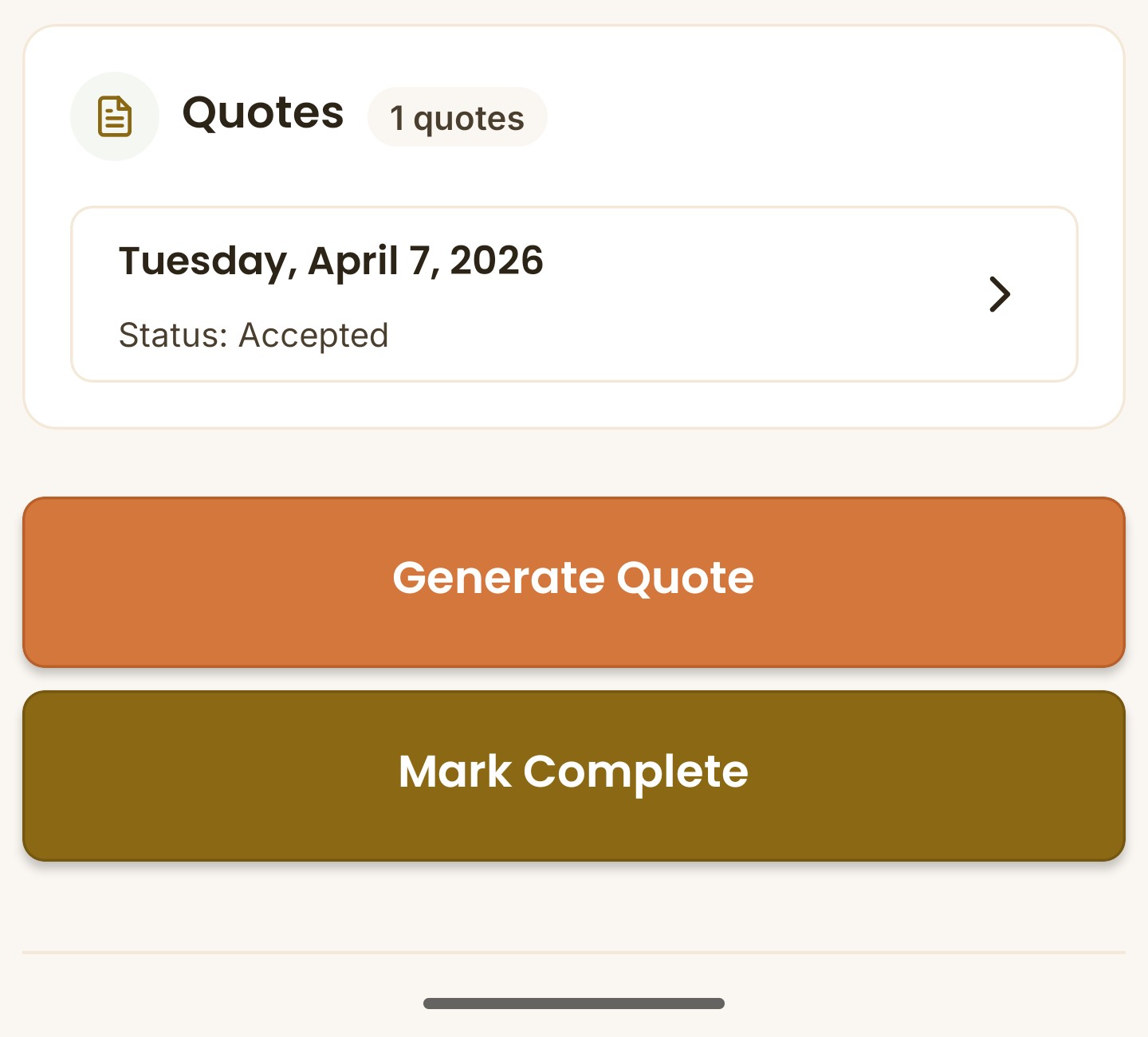
Accepted quotes include tracking to show when and who accepted them
After the project is done, you can mark it complete and it will move to the Done queue in the Projects tab.
Tip: You can resend the quote to the customer directly from the Quote page. If the customer has not accepted in three days, re:Quoted will notify you in the dashboard and you can one-click to send a follow-up.
3. Managing Your Customers
Navigate to the Customer tab on the bottom menu. From here, you can see all of your customers. You can add new customers both using the '+' button on this tab, or directly when creating a new project.
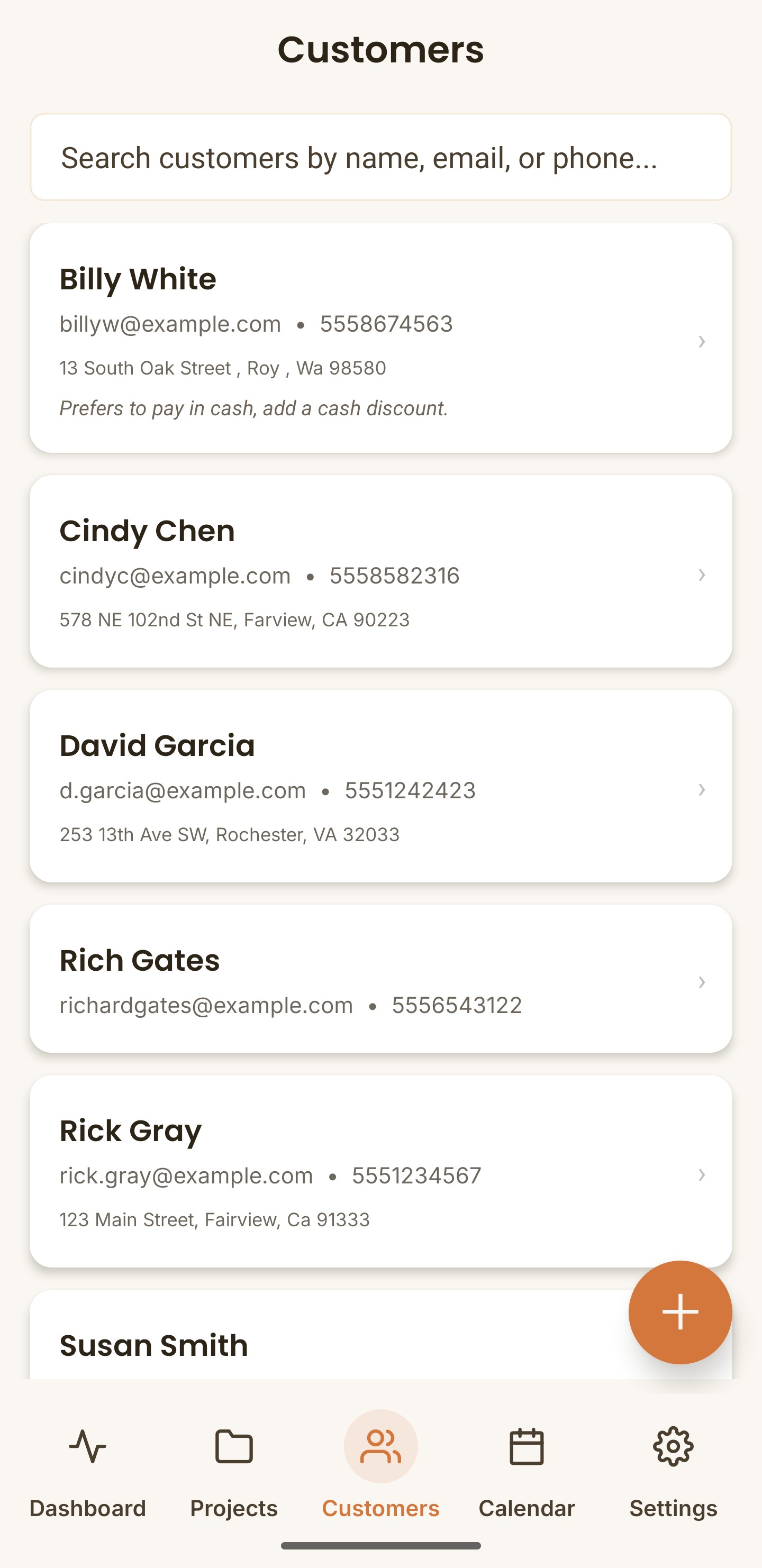
Within each customer, you can view and edit information.
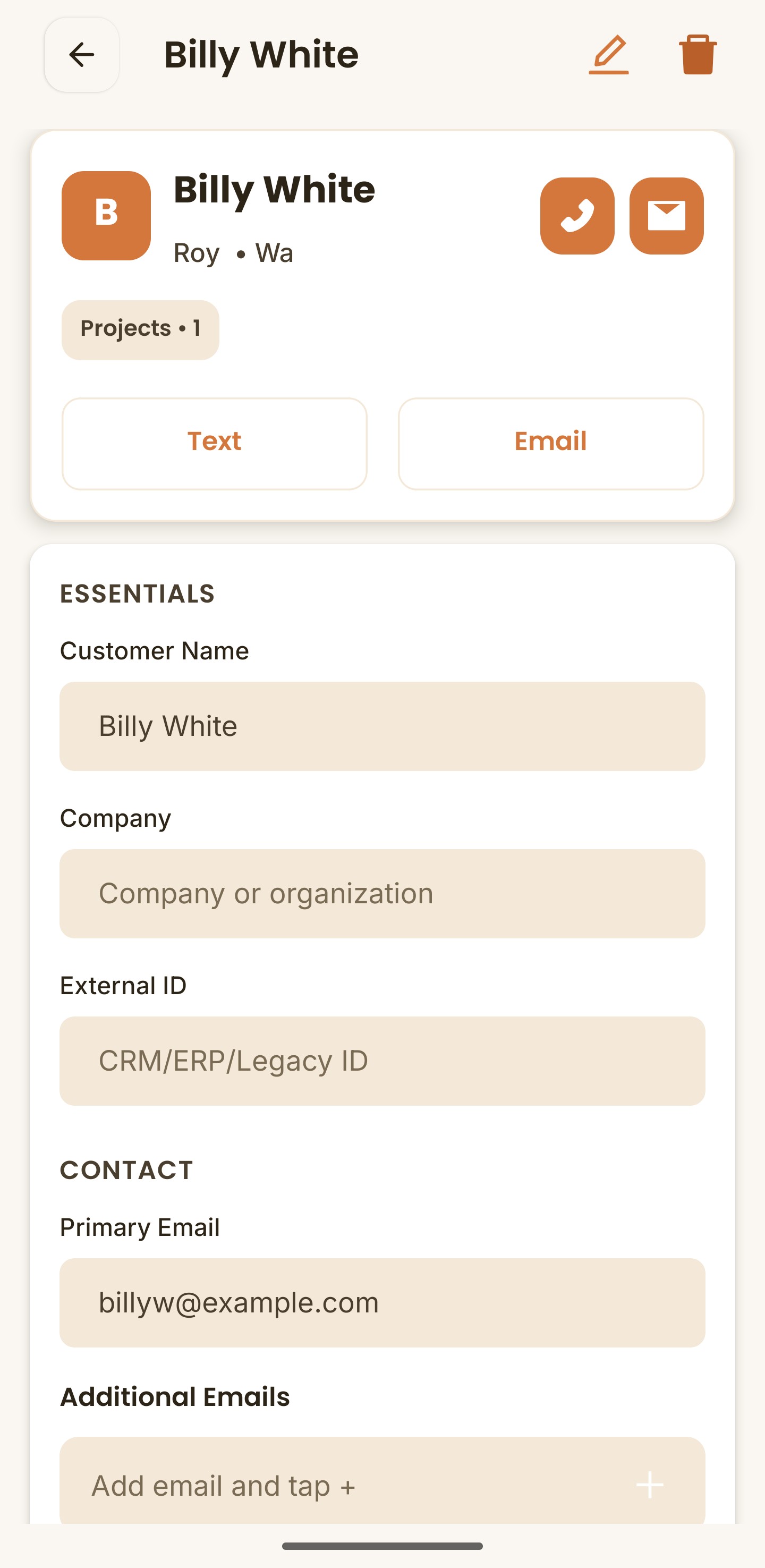
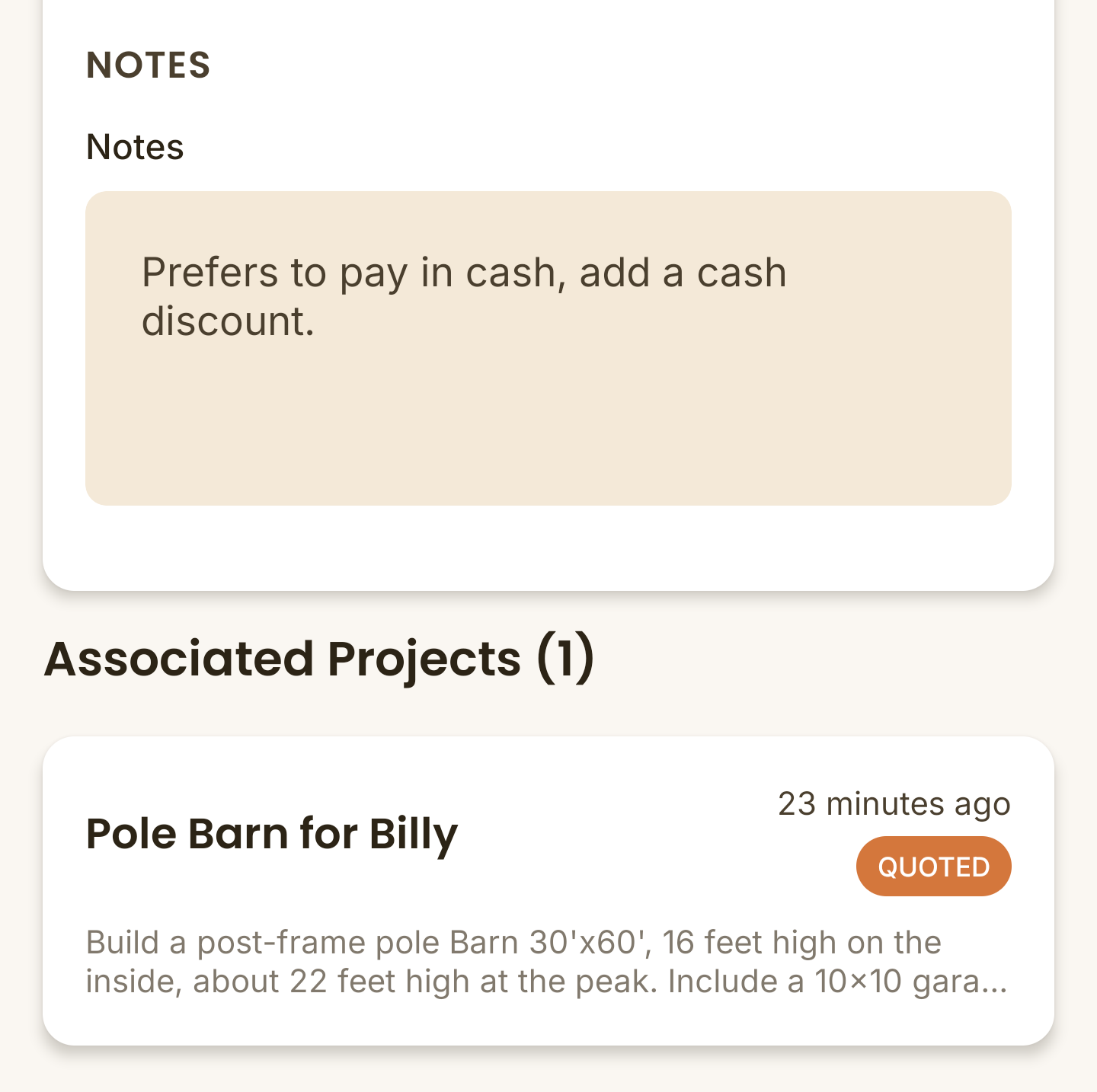
You can add service addresses, emails, and notes. You can also see all previous and active projects associated with that customer.
Tip: Use the search bar on the Customer tab to quickly find customers.
4. Calendar and Scheduling
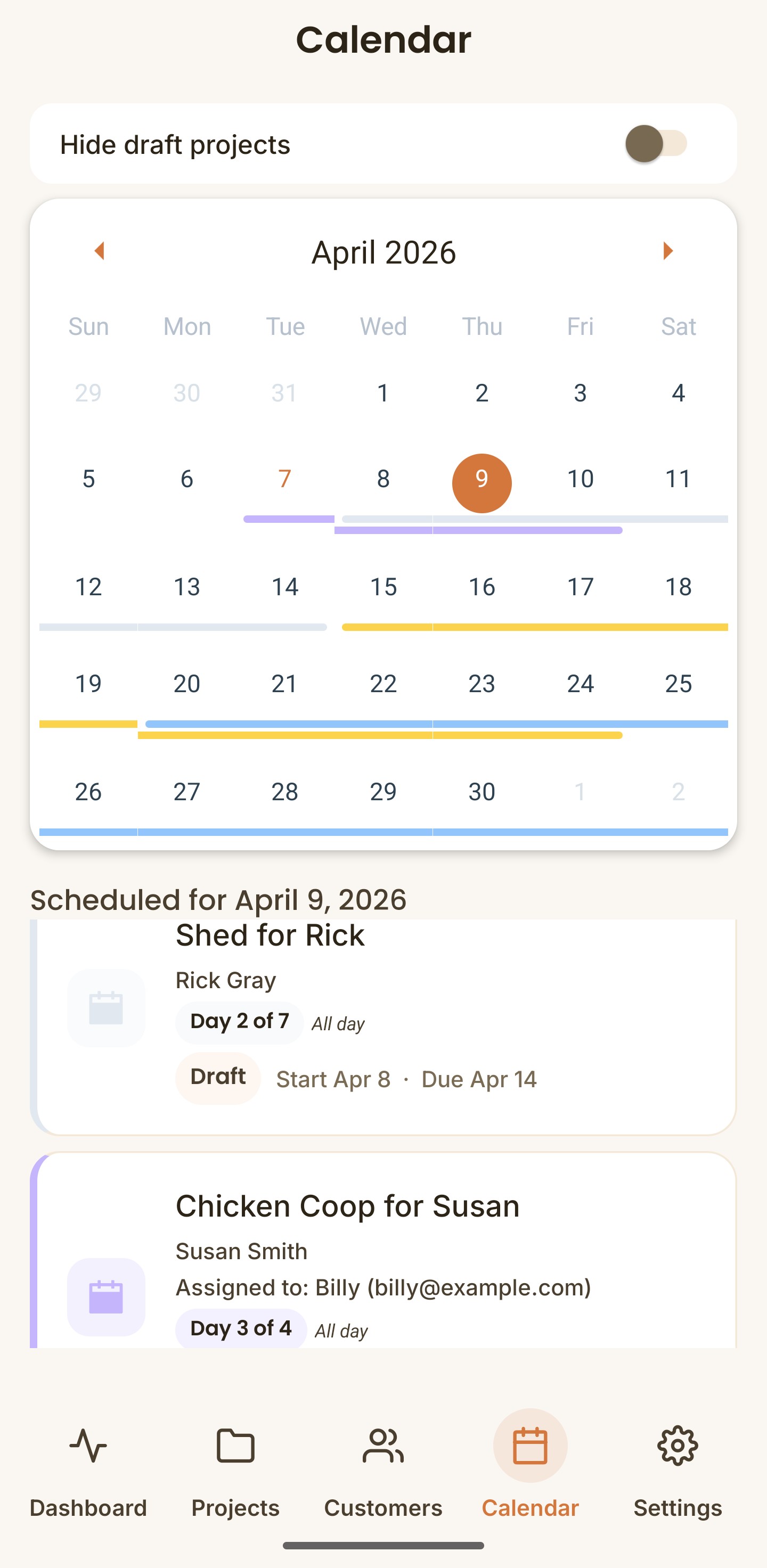
On the Calendar page you can see all upcoming work and who is assigned to each job. You can also filter draft projects on and off to see how upcoming quotes would fit into your schedule.
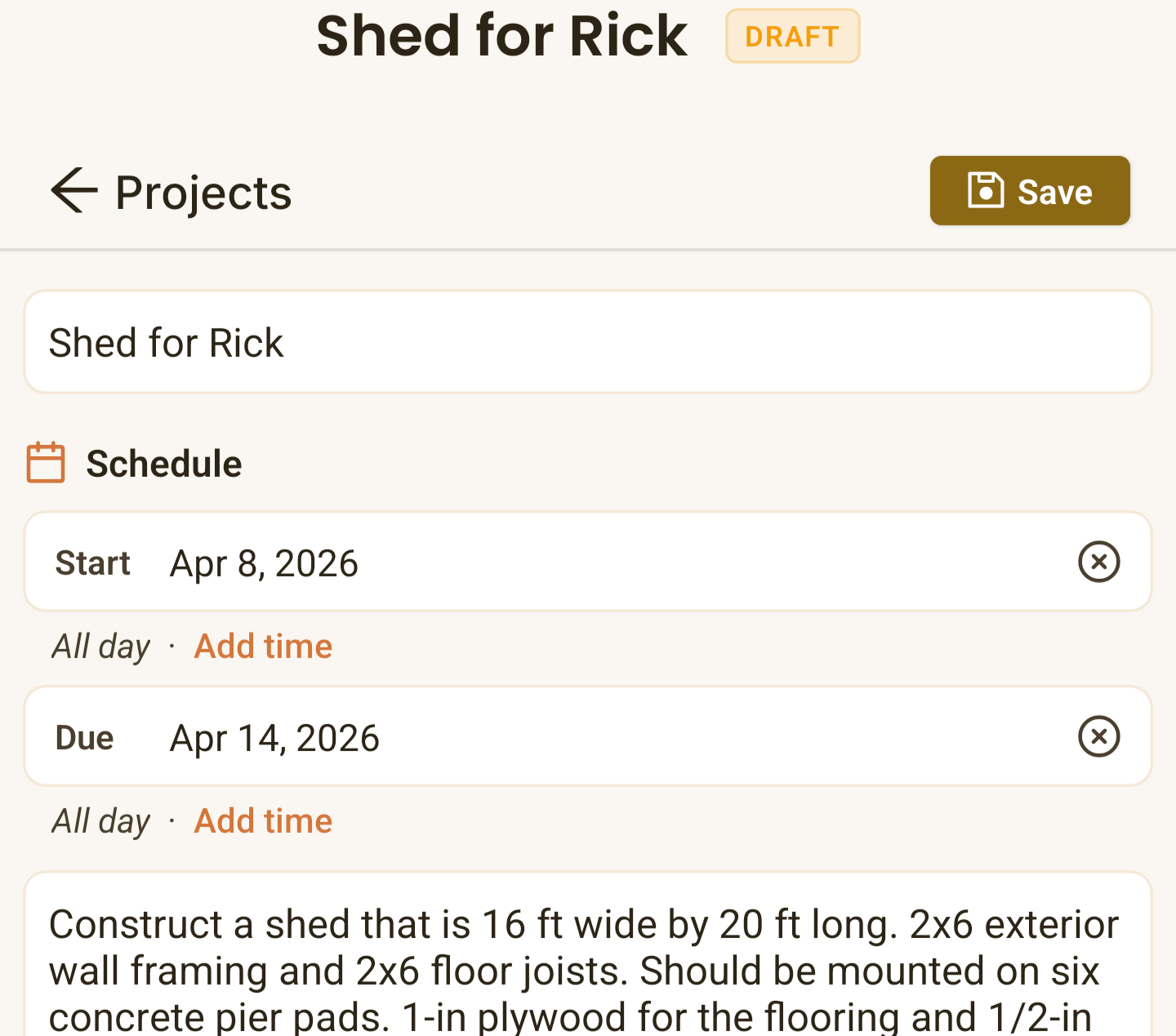
You can set and adjust project scheduling from inside each project.
Want to learn how to send your first quote?
Check our quote creation guide